
Google Sites is one of the many free web tools from Google for people who want to build a simple website at no cost. It’s designed for users who want a working website without touching code.
Google Sites can be used for both commercial and personal projects. It comes with a decent collection of web templates across industries that you can use to quickly launch a website or landing page, and no design skills are required to get started.
Beyond personal websites, Google Sites can also handle more complex use cases like company intranets, NGO websites, classroom sites, and affiliate marketing pages. It offers an intuitive interface that puts the user in control from the first click.
Steps to Use the Google Sites Website Builder
One of the most popular use cases for Google Sites is a portfolio website to showcase your work. Or if you simply want to publish your thoughts to the world, Google Sites might be all you need.
Zero technical know-how is required to get started. Tap into the range of Google themes and templates that best match your industry. All the templates look modern, responsive, and highly customisable, making it easy to showcase your own content in your own style.
Within a couple of minutes, your Google site can be set up and ready to go live. Here’s how to create one of your own.
Step 1: Sign in and open Google Sites
After you sign into your Google account, go to the Google Sites homepage.
Step 2: Start a new site
Look to the bottom right corner of the page and click the colourful plus icon, which turns into a pen icon labelled “create new site“.

Step 3: Pick a template
On the next page, watch for a small popup that reads “Unsure where to begin? Try a template. Visit template gallery” and click the link. If you miss the popup, refresh the page or open the gallery directly.
Step 4: Browse the gallery
The gallery opens in a new tab, showing all the templates on offer. These include portfolio, event, help centre, project, team, and several others built for education and small business niches. Select whichever template fits your idea best.
Step 5: Customise your site
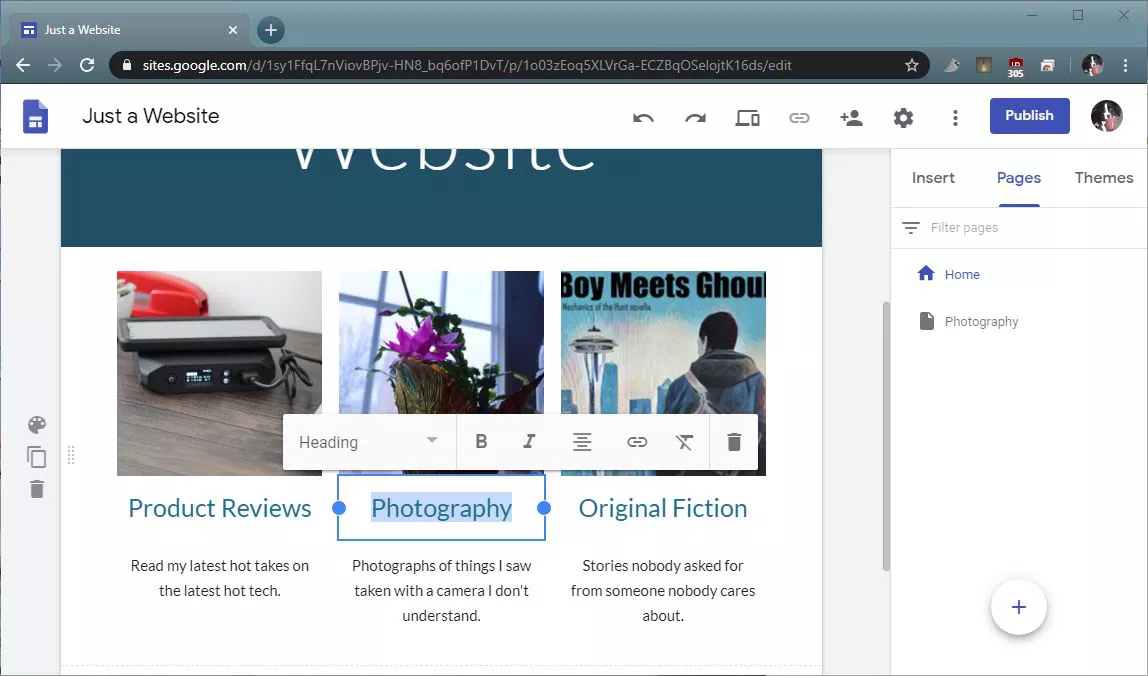
Now you can start editing the template. Add your website name to the top corner of the page, or upload a logo. The editor makes it easy to click on any element, image, text, or colour block, and change it directly.
The sidebar on the right gives you three tabs to work with: Insert, Pages, and Themes.
Insert gives you access to tools like extra text boxes, images, embeds, and a Google Drive import. Under content blocks, you’ll find a range of layouts you can use to build the page structure you want, alongside a table of contents, collapsible groups, image carousels, buttons, dividers, spacers, social links, YouTube embeds, calendars, maps, and direct embeds for Docs, Slides, Sheets, Forms, and Charts.
The second tab, Pages, lets you add more pages to your Google site.
Finally, the Themes tab lets you change the entire look and feel of your website. Choose from Simple, Aristotle, Diplomat, Vision, Level, and Impression, each with its own colour palette and web font.

Take your time putting the page together so it actually lands with your audience. If you’re short on ideas, check what your competitors are doing, or browse other professional websites for inspiration. There are thousands of live sites you can learn from.
More settings
Under settings, you can fine-tune further. For example, move your navigation from top to side, or switch the navigation colour between white, dark, or transparent.
Under the brand image tab, you can upload a logo and favicon to the navigation panel, and toggle the info icon and anchor links on or off.
How to Add a Custom Domain to Your Google Site
Next, connect a custom domain name to your Google site. Under settings, go to the custom domain tab, click “Start setup”, and enter your full domain name.
For example, yourbusiness.com. You’ll need to verify ownership in Google Search Console using the TXT method before the domain can be connected. Once Google confirms you’re the owner, your domain will be linked to your Google site within a couple of minutes.
Google Sites Features
Google Sites is a website builder app designed for anyone who needs a free website for personal or business use. Here’s a closer look at its key features.
Templates and themes: Google Sites offers a range of modern templates and themes you can use to quickly build a professional-looking website.
WYSIWYG interface: A user-friendly editor makes it easy to add your own content and style, arranging text, images, videos, and other media exactly how you want your site to appear.
Collaboration: Multiple users can edit and contribute to a website at the same time, which is why some organisations and NGOs prefer building on Google Sites. Integration with other Google apps makes team collaboration simple.
Access and permission control: You control who can view or edit your website, whether that’s specific people or the general public. Your Google site is tied to your Gmail account, which is protected by two-factor authentication and Google’s other security measures.
Integrations: Google Sites connects with other Google Workspace tools like Drive and Calendar, making it easy to share and collaborate on documents, spreadsheets, and other files.
Customisable layout: You can extensively customise your layout by editing sections, pages, and widgets, or add custom HTML, CSS, and JavaScript for more control.
Mobile responsiveness: Every Google Sites template adapts automatically to the screen size of the device it’s viewed on.
Search engine optimisation: Google Sites includes basic SEO tools, letting you add titles, unique text, and images to help your pages get found. That said, its SEO controls are far more limited than a dedicated CMS.
Analytics: Track traffic and engagement on your website, with insights into visitor activity and demographic data that matter for growth decisions.
Overall, Google Sites is a versatile, user-friendly website builder with a solid set of features for anyone who needs a functional site fast.
When Google Sites Isn’t Enough
Google Sites is great for a quick portfolio, an internal team page, or a simple landing page. But once you need ecommerce, custom functionality, strong SEO performance, or a design that truly stands out, you’ll outgrow it fast. At that point, a platform like WordPress, backed by proper WordPress web design and development, gives you far more flexibility. See our comparison of Wix vs WordPress for a sense of how the trade-offs compare, or check current web design costs in Nigeria if you’re planning to upgrade.
Google Site Web Design Service
Let us help you take your website to the next level with our Google Site web design service. Our team of experienced designers works with you to build a custom, functional website that fits your requirements.
Whether you need a new template design or a complete revamp, we have the skills to help you get there. Contact us today to find out how we can help you build a stronger website, whether that’s on Google Sites or a full custom platform.
Frequently Asked Questions
Is Google Sites really free?
Yes. Google Sites is completely free to use with any Google account. You only pay if you want a custom domain name, which is bought separately through a domain registrar, not through Google Sites itself.
Can I use Google Sites for a business website?
Yes, for a simple presence. It works well for landing pages, internal team sites, and basic portfolios. For ecommerce, blogging at scale, or strong SEO, a dedicated platform like WordPress is a better fit.
Does Google Sites support custom domains?
Yes. You can connect a domain you already own by verifying ownership through Google Search Console, then linking it under Google Sites settings.
Is Google Sites good for SEO?
It covers the basics, like page titles and meta descriptions, but it lacks the advanced SEO controls (structured data, granular URL control, plugin ecosystems) that platforms like WordPress offer.
How long does it take to build a Google site?
A simple site can be set up and published within an hour using a template. More detailed customisation naturally takes longer.
Send your brief to info@webdesigns.ng or WhatsApp us on 08114900422.
Need a website that actually grows your business?
Web Design Nigeria builds fast, SEO-ready websites for Nigerian businesses. Let’s talk about yours.